E Mail SubModule
1 What is?
This submodule covers sent e-mail messages, instant notifications.

2 About whom?
This submodule is used by all TAGTAŞ users with user accounts..
3 Main Features
This module contains two basic communication tools.
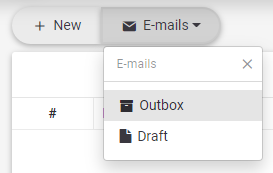
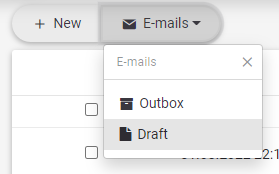
1.User E-Mails: It contains outgoing e-mails as well as unsent draft e-mails.
a.Outbox
b.Draft
A.Outbox

C.Draft

2.System Instant Notification: They are instant alarms and notifications produced by system components. It can appear on the screen for a short time, or it can be sent to the personal e-mail address of the user.
a.Outbox

3.1 Creating New E-Mail
1.A new e-mail is created with this button. 
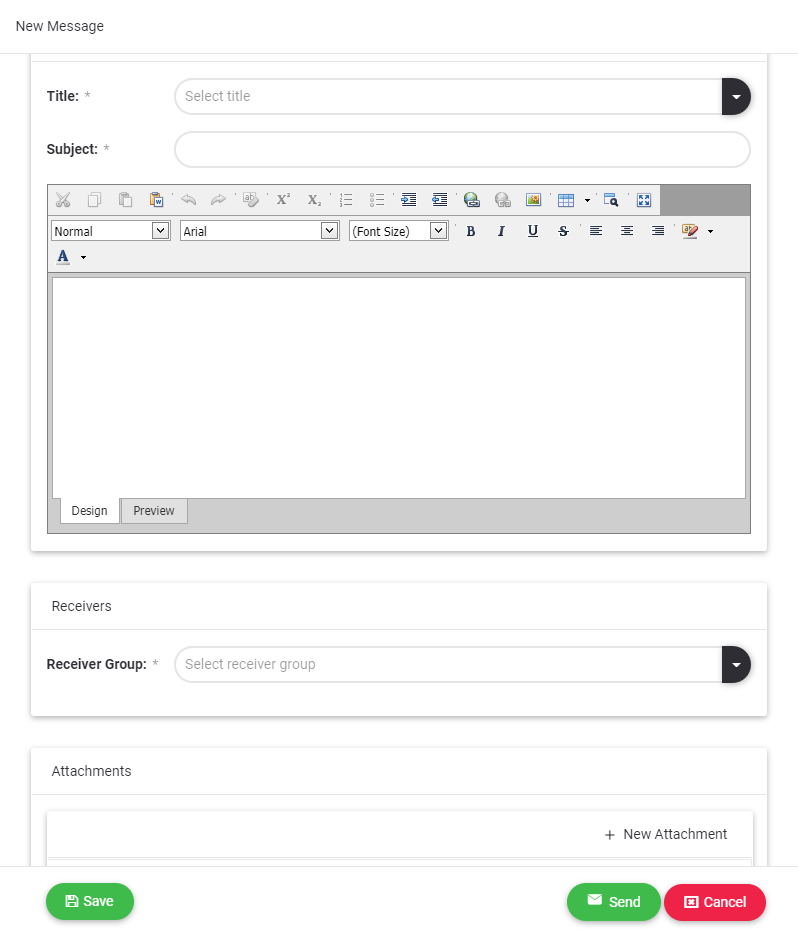
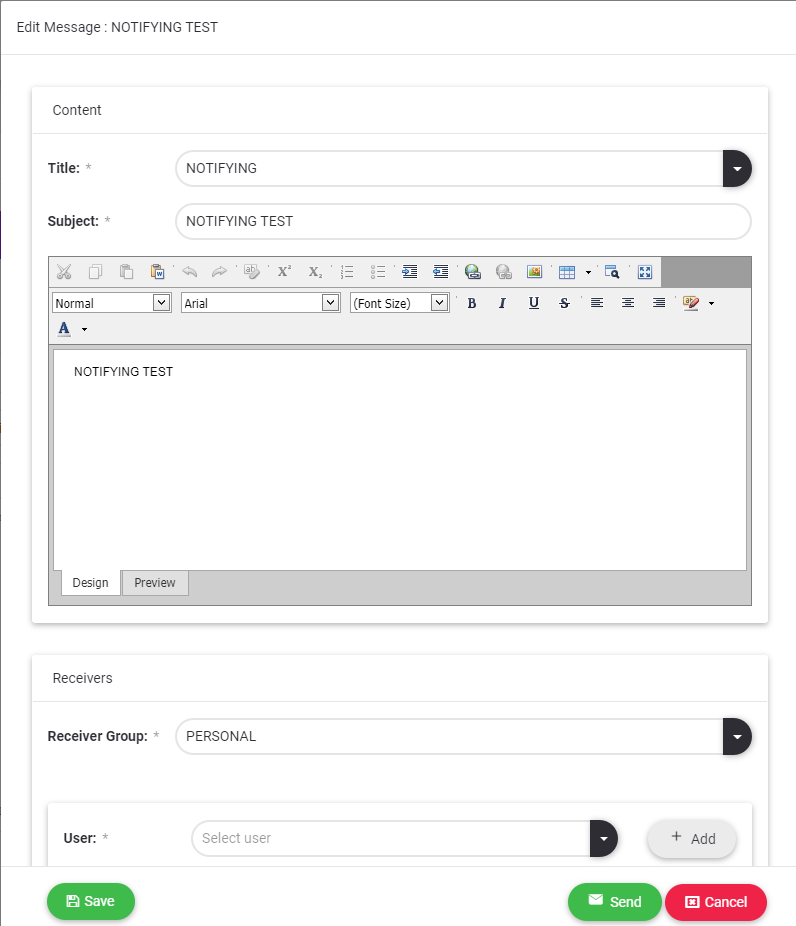
a.Subject titles defined with "Title" can be selected

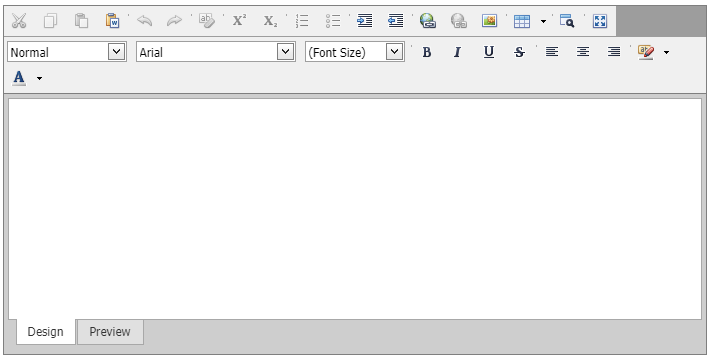
b.The content area has rich text features. It also has the feature of adding table, picture, link etc.
c.Receivers: There are 4 different receiver groups.
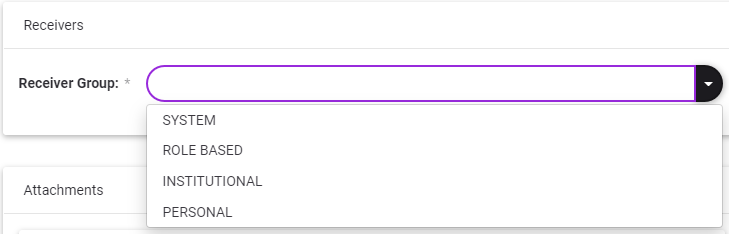
1.System: Includes all users. The created e-mail is sent to all active users by the system.
2.Role Based: More than one selection can be made from the defined roles. The created e-mail is sent to all active users with the selected roles.
3.Institutional: More than one selection can be made from the companies defined in the system. The created e-mail is sent to all active users who are employees of the selected institution.
4.Personal: More than one selection can be made from the people who have a user account defined in the system. E-mails are sent to selected users. There are two cycles that can be selected.
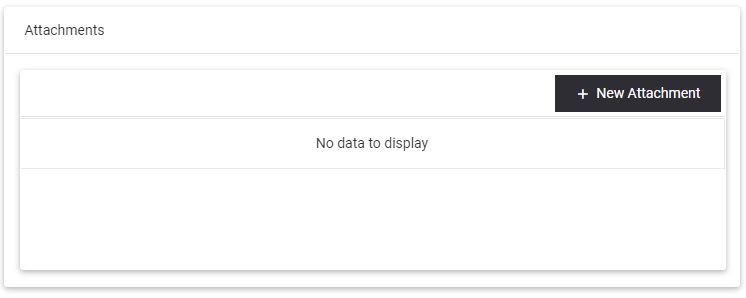
d.Attachment: Files of the allowed file type and size can be attached to e-mails.
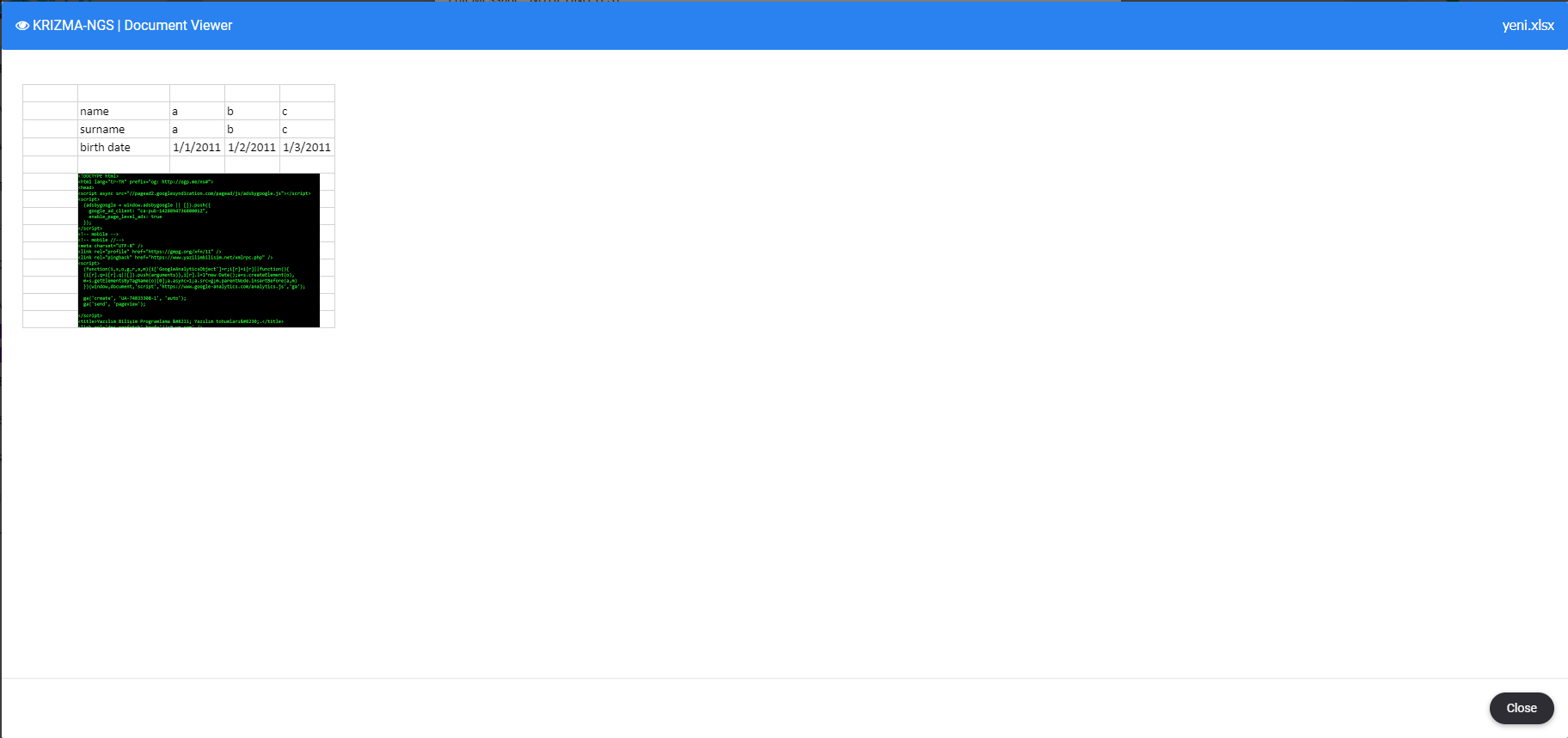
•The content is displayed by clicking on the uploaded file.
•Click the Download button to download the file.
•Click the delete button to delete the uploaded file.

3.2 Editing E-Mail
E-mails in the draft box can be re-edited and saved or sent.

3.3 Deleting E-Mail
E-mails can be deleted in 3 different ways.
1.Using the Delete All  button depending on the e-mails selection on the list. All selected e-mails are deleted.
2.Click the delete button at the end of the e-mail row. 
3.Using the Delete button in the e-mail detail.

3.4 Forwarding E-Mail
All e-mails can be forwarded to. With the Forward button, the e-mail with its content and attachments move to the new e-mail form.

3.5 Listing Features
3.5.1 Delete All
Deletes all selected e-mails which are sent or saved as draft. 
3.6 Export File
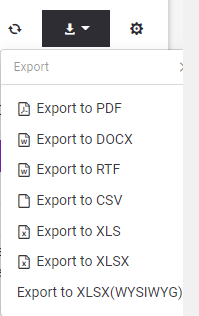
To export the e-mails list which are sent or saved as draft to outside as a file, should be  clicked export button and chosen appropriate file type.