
Data Filtering at Columns
Things to know about the filter
•The data type (such as Text, Number, date) in the field to be filtered is extremely important.
•Properties in the field opened for filters are variable according to this data type.
Filtering Button & Status
• No Filtered
• Filtered Columns
Filter Removal
•If you need no filter status, you can click to .. button and select "(All)" section.
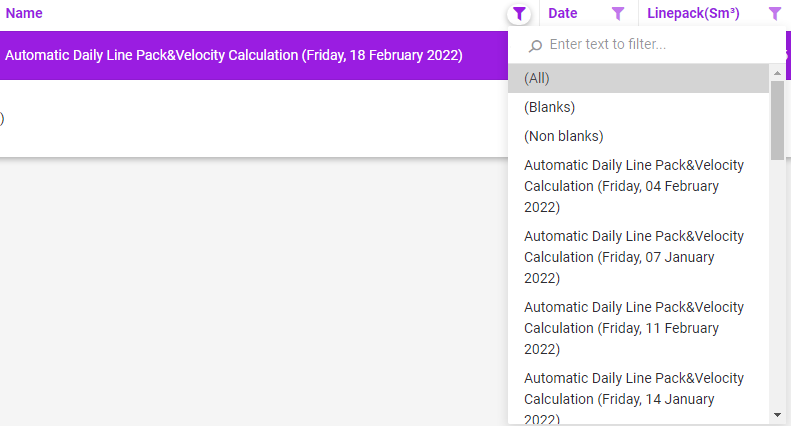
Add Filter (Filtering At the Column Name)
•To filter a table (grid) column, click the . button to the right of the column name. The popup window is variable depending on the column type. A view similar to the following appears
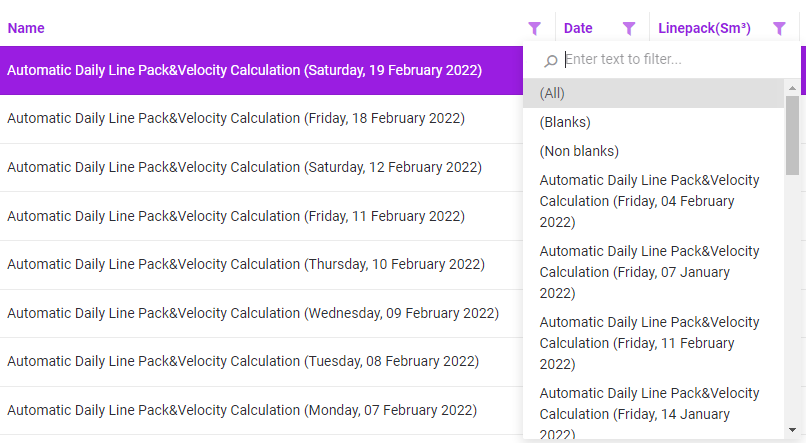
•For Columns Filtering At The Text Type
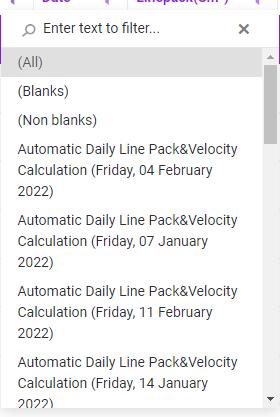
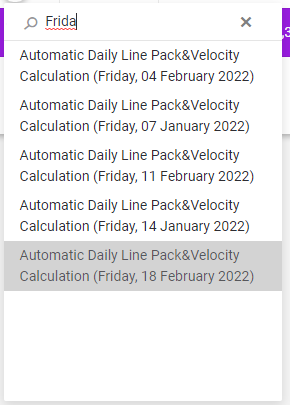
oAs seen in the image above, the lines in which the letters you enter in the section of the screen that says "Enter text to filter" begin to filter. (Example "Frid" writing)
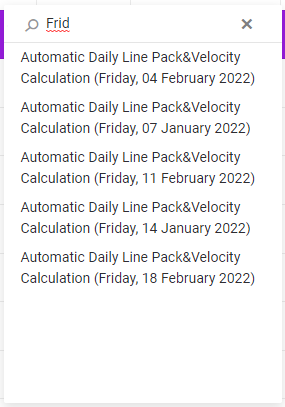
oWhen you choose the one you prefer from these filtered rows, the system filters the table data based on your selection. (Example "18 February 2022" selecting)

•For Columns Filtering At The Number Type

oAs seen in the image above, the lines in which the letters you enter in the section of the screen that says "Enter text to filter" begin to filter. (Example "3" writing)
oWarning you can write number.
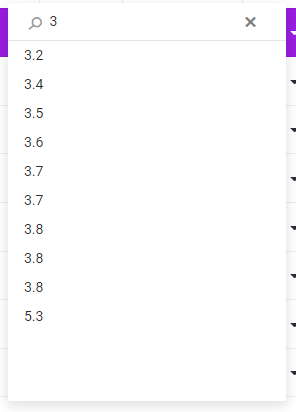
oWhen you choose the one you prefer from these filtered rows, the system filters the table data based on your selection. (Example "3.2" selecting)

•For Columns Filtering At The Date Type
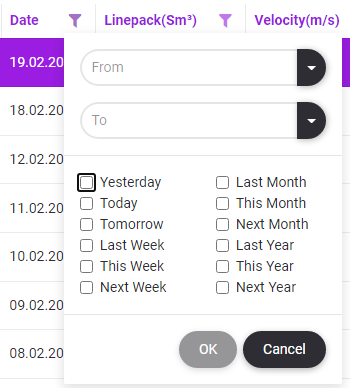
oOptions will appear on the screen as seen in the picture above. In the lower part of the option window, you can make a selection directly described (For example, Yesterday).
oOr, you can specify the dates that you will write in the "From" & "To" fields in accordance with the Date format ("dd.mm.yyyy" - For example, 18.01.2022) or choose from the date picker that opens with the icon on the right  .
.
oSome tables may have a system date range constraint. In this case, it will show you the dates that you cannot select in the date picker.
oIf your date format is incorrect or your input or selection is inappropriate, the  button below will not be active.
oFor example, let's enter the dates 01.01.2022 - 18.02.2022 in the relevant fields.
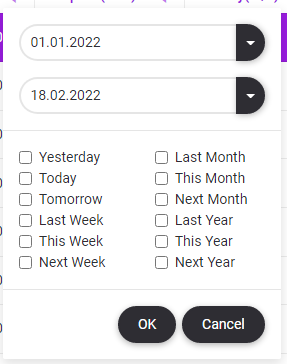
oThe  button is active. Let's click...
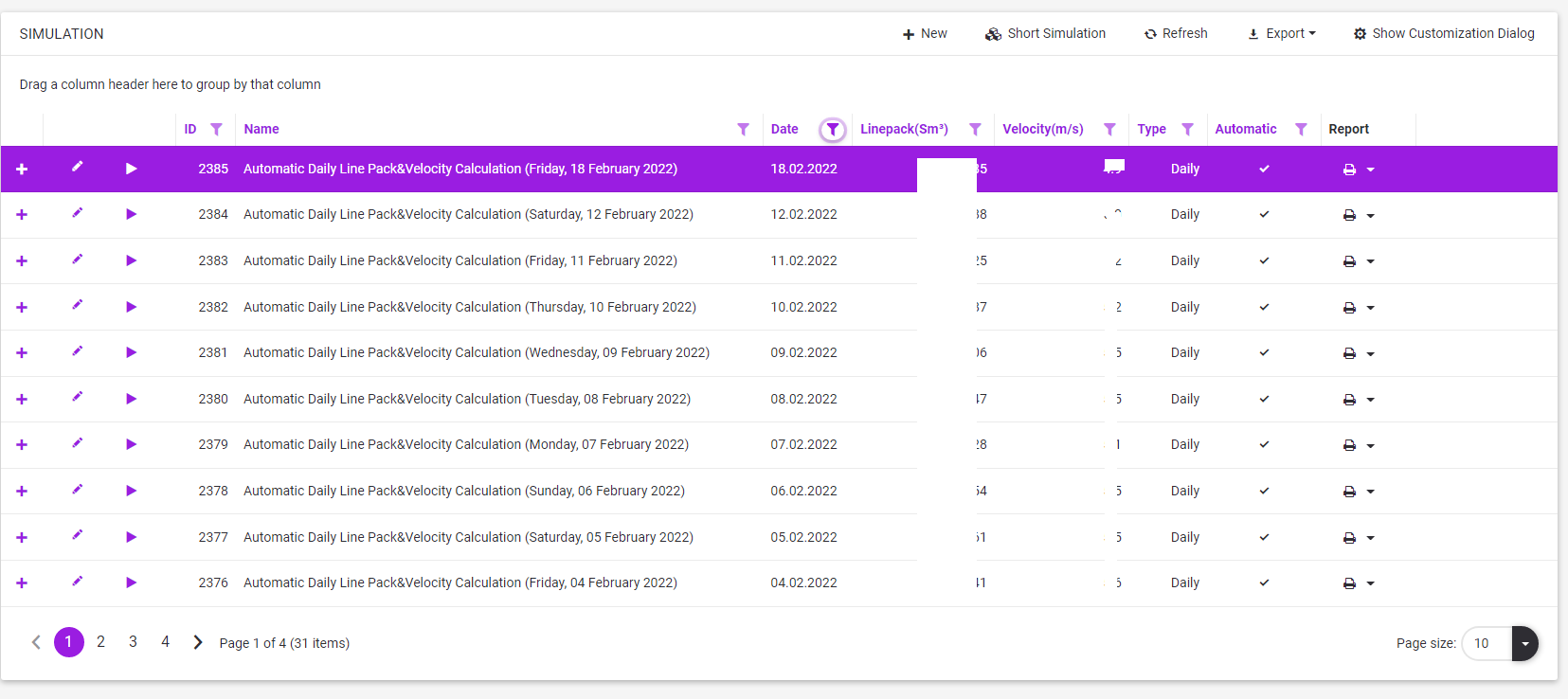
•Notes
oThis view will be stored for the user. This new look will be continued in the next logins to the system. However, he has the opportunity to make changes whenever he wants. If the user deselects the columns they do not want to view, these columns will not appear in the "Export" operation..
oFor operations on shrinking and expanding data (Rows) after filtering, see Collapse Rows & Expand Rows
oAttention. Filtered data may overflow to subsequent pages. See Paging