
Customization Dialog
1 What is?
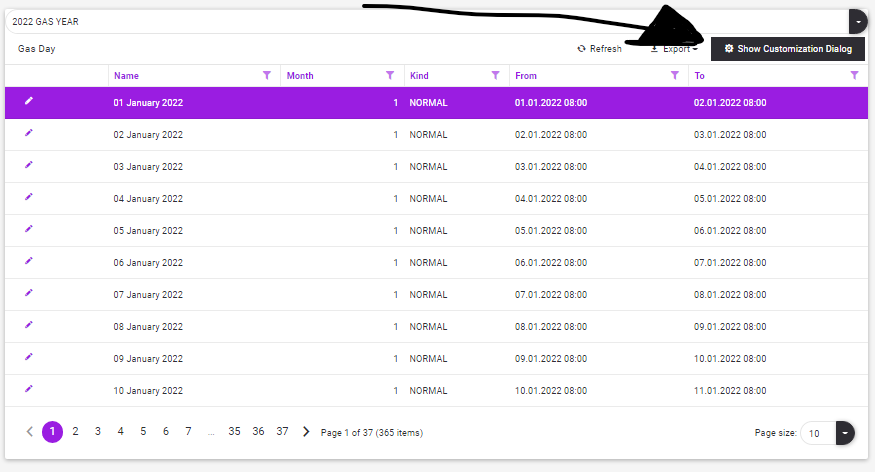
This table structure can be customized by clicking the "Show Customization Dialog" button in the upper right corner of "Grid components".
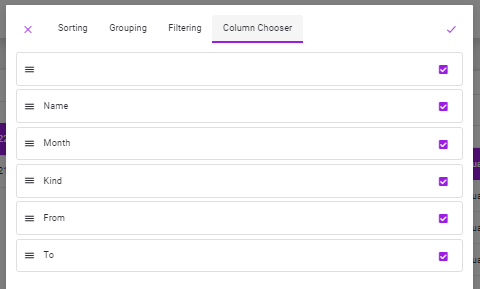
In customization;
•Column Chooser (And Move)
•Sorting (Single or Multi Columns)
•Grouping (Single or Multi Columns)
•Filtering (Single or Multi Columns) options are available. We will examine them below.
It will be sufficient to click on the  icon to confirm the transactions, and the
  icon to cancel.
2 Column Chooser (And Move)
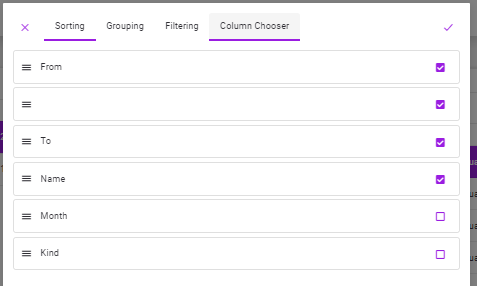
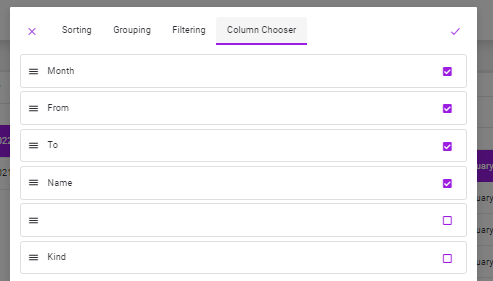
•The desired changes (column selection or deselection and changing the order of the columns by drag-and-drop operation) are confirmed after they are made.
•Thus, the Grid view changes according to the user's request.
•Note this view will be stored for the user. This new look will be continued in the next logins to the system. However, he has the opportunity to make changes whenever he wants. If the user deselects the columns they do not want to view, these columns will not appear in the "Export" operation..
3 Sorting (Single or Multi Columns)
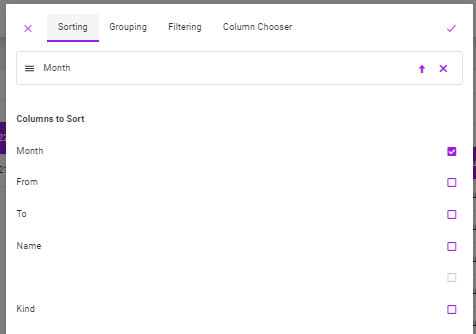
•The user selects (marks) the column he wants to sort by going to the "Sorting" tab.
•The system automatically sorts Ascending. However, the user can reverse the order by pressing this sort icon  .
.
•To cancel the sorting, it will be enough to click on the icon to the right of the column.
•If the user wants to sort on the 2nd or more columns at the same time (if he selects more than one column), the view in the sorting tab will be as follows.
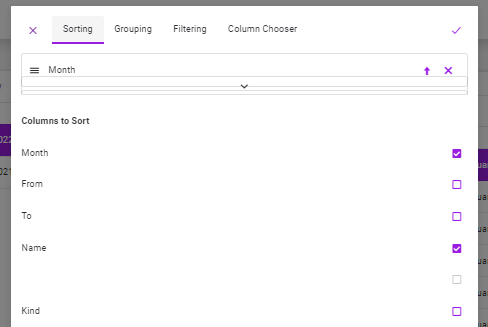
•In this case, clicking the  icon expands the "Sort" field. The screen becomes the following.
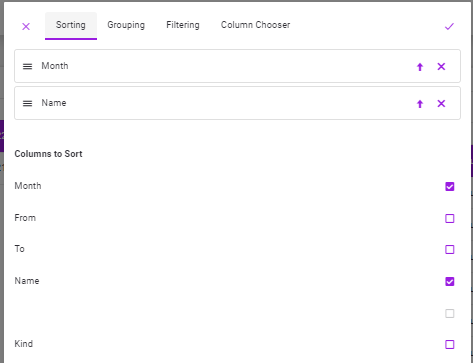
•In this case, you can change the priority of the columns you want to sort by using the drag-and-drop method or directly changing the ascending/descending sorting type of the relevant column.
•It must approve the actions to be taken.
•Note this view will be stored for the user. This new look will be continued in the next logins to the system. However, he has the opportunity to make changes whenever he wants. If the user deselects the columns they do not want to view, these columns will not appear in the "Export" operation..
4 Grouping (Single or Multi Columns)
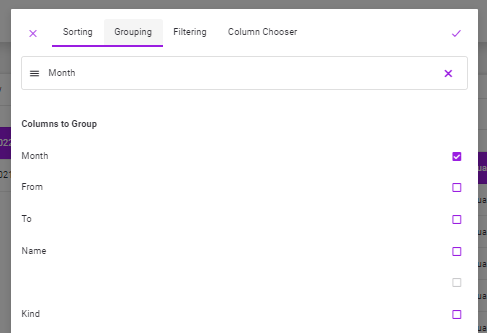
•The user selects (marks) the column he wants to group by going to the "Grouping" tab.
•To cancel the grouping, it will be enough to click on the icon to the right of the column.
•If the user wants to group on the 2nd or more columns at the same time (if he selects more than one column), the view in the grouping tab will be as follows.
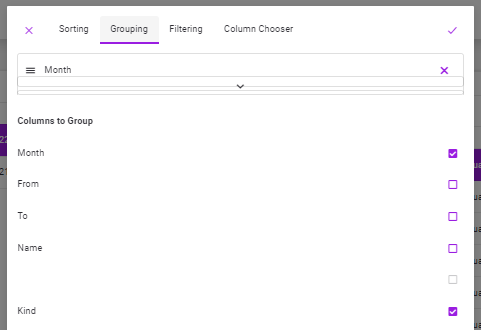
•In this case, clicking the icon expands the "Group" field. The screen becomes the following.
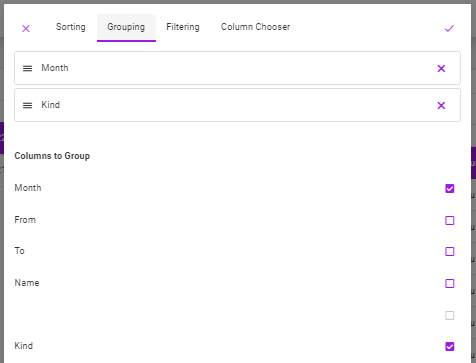
•In this case, you can change the priority of the columns you want to group by using the drag-and-drop method of the relevant column.
•It must approve the actions to be taken.
•Notes
oThis view will be stored for the user. This new look will be continued in the next logins to the system. However, he has the opportunity to make changes whenever he wants. If the user deselects the columns they do not want to view, these columns will not appear in the "Export" operation..
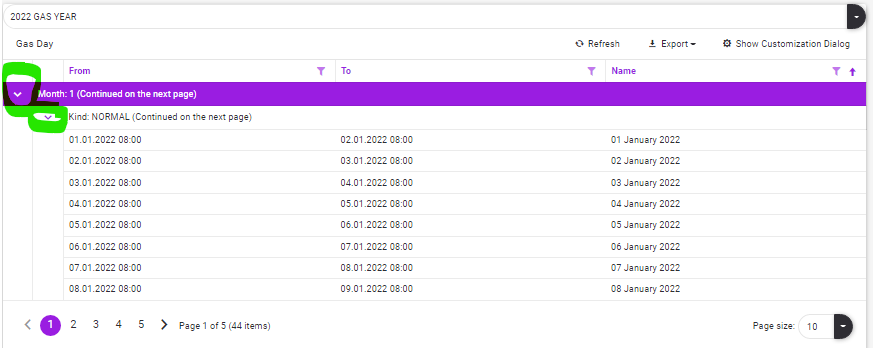
oFor operations on shrinking and expanding data (Rows) after grouping, see Collapse Rows & Expand Rows
oAttention. Grouped data may overflow to subsequent pages. See Paging
5 Filtering (Single or Multi Columns)
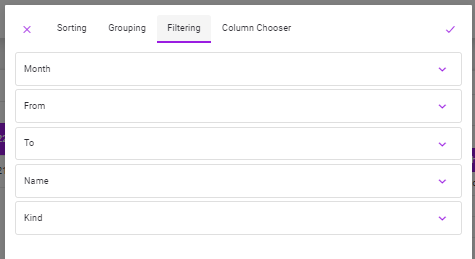
•The user goes to the "Filtering" tab and clicks the  icon to the right of the column they want to filter.
oTo collapse the column filter feature, simply click the  icon. The filtering area just narrows.
•To cancel the filtering, it will be enough to click on the icon to the right of the column.
•Things to know about the filter:
oThe data type (such as Text, Number, date) in the field to be filtered is extremely important.
oProperties in the field opened for filters are variable according to this data type.
oFor example, the Text (Or for numbers with text appearance) "Equality" feature is enabled.
oIf the "Load Values to Select" link is clicked, the appropriate filterable values will be displayed. (such as using the Excel filtering feature)
oFrom here, you can search and select with the search feature.
A)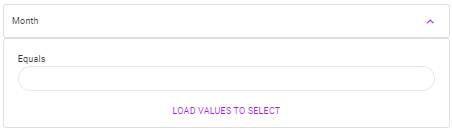
B)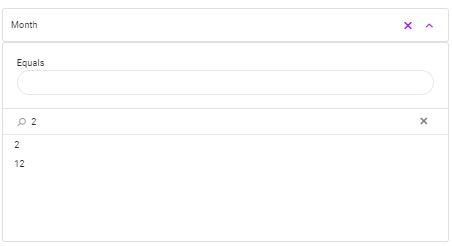
C)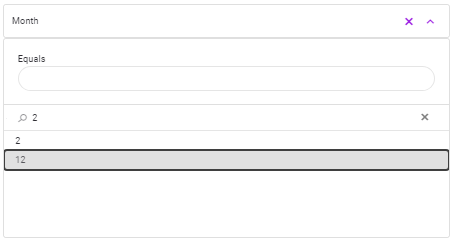
•Notes
oThis view will be stored for the user. This new look will be continued in the next logins to the system. However, he has the opportunity to make changes whenever he wants. If the user deselects the columns they do not want to view, these columns will not appear in the "Export" operation..
oFor operations on shrinking and expanding data (Rows) after filtering, see Collapse Rows & Expand Rows
oAttention. Filtered data may overflow to subsequent pages. See Paging